

Why Is My WordPress Website Slow and How Can I Fix It?
TL;DR
If your WordPress website is slow, do this in order:
- Back up the site and use staging. Performance changes can break layouts, forms, checkout, consent tools, or logged-in features.
- Measure before changing anything. Test representative pages in PageSpeed Insights, check real-user Core Web Vitals, record time to first byte (TTFB), and review WordPress under Tools > Site Health.
- Fix slow server response first. Confirm modern PHP and database versions, adequate CPU/RAM, OPcache, nearby hosting, and no exhausted account limits.
- Enable one reliable full-page cache. A cached public page avoids rebuilding WordPress, running PHP, and querying the database for every visit.
- Find expensive plugins, theme code, and queries. Test on staging by selectively disabling components and measuring after each change. Plugin count alone is not the diagnosis; the work each plugin performs is what matters.
- Optimise the largest visible image. Resize it to its display dimensions, compress it, use an efficient format, and do not lazy-load the above-the-fold LCP image.
- Remove or delay non-essential CSS, JavaScript, and third-party tools. Chat widgets, trackers, video embeds, maps, ads, and page-builder features frequently hurt responsiveness.
- Repair database and scheduled-task problems. Check oversized autoloaded options, failed cron jobs, and WooCommerce scheduled actions; do not delete database rows without a verified backup and expert review.
- Retest the same pages and protect the gains. Track field data, conversions, and errors—not only a single Lighthouse score.
The fastest high-impact sequence for many brochure sites is: better server response → full-page caching → right-sized hero image → fewer third-party scripts → plugin/query cleanup. A WooCommerce, membership, or multilingual site needs more careful cache exclusions and database testing because much of its content is dynamic.
Why is WordPress so slow?
WordPress generates many pages dynamically. On an uncached request, the server may load WordPress core, the active theme, and plugins; query the database; construct the page; and return HTML. The browser must then download images, fonts, CSS, and JavaScript before it can render and respond smoothly. Delay at any layer makes the site feel slow.

The most common causes are:
- Underpowered, overloaded, or geographically distant hosting
- An old or poorly configured PHP/database stack
- No page cache, a cache miss, or conflicting cache layers
- Slow plugins, theme functions, external API calls, or database queries
- Oversized images, video, or excessive fonts
- Too much CSS, JavaScript, or page-builder markup
- Analytics, advertising, chat, maps, consent, and other third-party scripts
- A bloated wp_options table or excessive autoloaded data
- WP-Cron or WooCommerce background-task backlogs
- Malware, bot traffic, brute-force attempts, or traffic spikes
- Uncached personalised pages such as carts, checkout, accounts, and dashboards
Do not start with “Which speed plugin should I install?” Start with “Which layer is slow on which page for which visitor?” The WordPress optimisation handbook likewise treats hosting, configuration, software, caching, content and database work as separate performance factors.
What does “slow” actually mean?
“The site feels slow” can describe several different failures. Diagnose the symptom before choosing a fix.
| Symptom | Likely layer | First test |
|---|---|---|
| Blank screen or long wait before anything appears | Server, redirects, cache, PHP or database | Check TTFB and whether the response is a cache hit |
| Main headline or hero image appears late | LCP resource, TTFB or render-blocking assets | Inspect the LCP element in PageSpeed Insights |
| Page appears, but buttons respond slowly | Excess JavaScript, long main-thread tasks or third parties | Check INP field data and the browser Performance panel |
| Text, banners or buttons jump while loading | Missing dimensions, late fonts, ads or injected content | Inspect CLS and layout-shift culprits |
| Public pages are fast, but wp-admin is slow | Queries, plugins, cron, object cache or external APIs | Profile admin requests and scheduled actions |
| Site is fast logged in but slow logged out—or the reverse | Different caching, personalisation or toolbar/plugin behaviour | Compare clean incognito and authenticated sessions |
| Only product, cart or checkout pages are slow | WooCommerce queries, extensions, sessions or payment/shipping APIs | Test each template and review Scheduled Actions |
| Site becomes slow only at busy times | CPU, memory, PHP workers, database capacity or bots | Correlate resource use, traffic and response time |
Use Core Web Vitals, but interpret them correctly
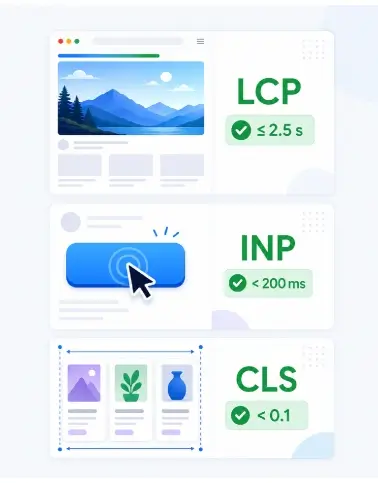
Google’s current “good” targets are:
- Largest Contentful Paint (LCP): 2.5 seconds or less
- Interaction to Next Paint (INP): less than 200 milliseconds
- Cumulative Layout Shift (CLS): less than 0.1
Assess these at the 75th percentile and separately for mobile and desktop. These metrics represent loading, responsiveness, and visual stability. Google recommends good Core Web Vitals, but also says a perfect score is not a guarantee of rankings and may not be the best use of time. Relevance and an overall good page experience still matter. See Google’s Core Web Vitals guidance and page-experience guidance.
Field data and lab data answer different questions
Field data describes experiences collected from real users over time across their devices and networks. It is the best evidence of whether users are actually receiving a good experience. Lab data is a repeatable simulated test that helps debug a particular URL now.
Use PageSpeed Insights for both when available. Begin with “Discover what your real users are experiencing,” then use Lighthouse diagnostics to investigate. A new or low-traffic page may not have enough field data; that does not mean it is fast. Google’s Core Web Vitals tools workflow explains how URL-level, origin-level, mobile, and desktop results can differ.
Do not optimise only the homepage. Test at least:
- The homepage
- One major service or landing page
- One long article
- One page built with your heaviest template
- Search or category pages
- For stores: a product, category, cart, checkout, and account page
- A logged-in admin screen if wp-admin is slow
Before you make changes: protect the website
Performance optimisation changes how pages are generated, cached, and delivered. Treat it like development work.
- Create a complete, restorable backup of files and database.
- Confirm that you know how to restore it - not merely that a backup job says “successful.”
- Clone production to a staging environment with comparable PHP and server settings.
- Record a baseline for the same URLs, devices, and test conditions.
- Change one category at a time and keep a change log.
- Test forms, search, menus, cookie consent, login, password reset, ecommerce, and analytics after every material change.
- Purge every relevant cache after deploying code or content changes.
Never experiment with database deletion, JavaScript delay, checkout caching, or plugin isolation directly on a revenue-producing site during a busy period.
A step-by-step WordPress speed diagnosis
Step 1: Run WordPress Site Health
Open WordPress Dashboard > Tools > Site Health. Review both Status and Info. WordPress can flag critical or recommended issues and show details about WordPress, themes, plugins, media, server, database, and filesystem. Its cache checks can identify whether full-page caching is present and whether a persistent object cache is appropriate.
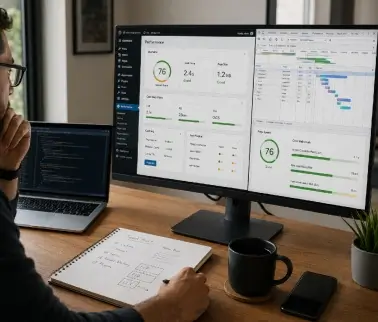
Look for:
- Outdated PHP, WordPress, theme, or plugin versions
- Missing page cache or a persistent-object-cache recommendation
- Failed loopback requests or background updates
- Missing PHP modules
- Active PHP sessions
- An oversized autoloaded-options warning
- Unexpected active or must-use plugins
- Unusually large directories or media libraries
Site Health is a starting point, not a complete profiler. WordPress documents the screen at Site Health and its built-in cache checks in the WordPress 6.1 cache Site Health note.
Step 2: Establish a repeatable baseline
For each test URL, record:
- Field LCP, INP, and CLS where available
- Lab LCP and Total Blocking Time
- TTFB or document response latency
- Transferred bytes and request count
- The LCP element
- The largest image, CSS, and JavaScript files
- Whether HTML was served from cache
- Visible errors and broken functions
Test mobile and desktop, but prioritise mobile if most customers use it. Run several tests rather than treating one result as truth. Location, network, server load, warm or cold caches, cookies, and third-party availability can change a result.
Chrome’s Lighthouse documentation describes audits as indicators for improvement. The sound workflow is baseline, change, retest—not chasing every coloured warning at once.
Step 3: Decide whether the server or the browser is the bottleneck
Use this practical split:
- Slow initial HTML/TTFB: Investigate redirects, cache misses, PHP, WordPress code, queries, external calls, server resources, and distance.
- HTML arrives quickly, but the page renders late: Investigate the LCP resource, fonts, CSS, JavaScript, and images.
- Page renders quickly, but interactions lag: Investigate JavaScript execution, a large DOM, sliders, menus, filters, and third-party code.
- Layout moves: Reserve space for media and embeds, stabilise fonts and banners, and stop inserting content above existing content.
TTFB occurs before meaningful paint metrics, so a high TTFB consumes the time available for a good LCP. Google’s TTFB optimisation guide recommends using field evidence first because redirects, network distance, and real conditions affect it.
Ready to Make Your WordPress Website Faster?
Let our WordPress experts identify performance bottlenecks, improve Core Web Vitals, and deliver a faster, smoother experience for your visitors.
Request a Free Speed AuditStep 4: Check the request waterfall and response headers
In Chrome DevTools, open Network, reload the page, and inspect the HTML document plus major assets. Check:
- Redirect chains before the final URL
- The HTML waiting time
- Cache-control, age, and vendor-specific cache-status headers
- Compressed text responses such as Brotli or gzip
- Large or duplicated files
- Render-blocking stylesheets
- Scripts loaded before useful content
- Requests that fail, time out, or come from many third-party domains
A cache plugin’s “enabled” switch does not prove that pages are cached. Verify the response and repeat the request. Logged-in users, cookies, query strings, and dynamic pages often bypass full-page cache by design.

How to fix a slow WordPress website - in priority order
1. Fix hosting and PHP capacity
Hosting is the foundation. Optimising images will not repair a server that routinely queues PHP requests or runs out of memory.
Check with your host:
- Current PHP, MariaDB/MySQL, and WordPress versions
- PHP memory limit and worker/process limits
- CPU throttling, RAM pressure, disk I/O, and account-resource faults
- OPcache status
- Database latency and slow-query evidence
- Server location relative to customers
- Availability of server-level page cache and persistent object cache
- Traffic or bot spikes at the time of slowdowns
As of this update, WordPress recommends PHP 8.3 or greater and MariaDB 10.11+ or MySQL 8.0+, while noting that older legacy versions may still run but have reached end of life. Always verify theme and plugin compatibility on staging before changing PHP. See the current WordPress requirements.
Upgrade hosting when measurements show sustained resource saturation, slow uncached TTFB despite application cleanup, inadequate PHP workers for concurrent traffic, or database/storage limits. Do not upgrade solely because a speed report displays a generic “server response” warning; first confirm the cause.
2. Add or repair full-page caching
For a public page that rarely changes, full-page caching is often the largest improvement for the least work. It stores generated HTML and serves it without rebuilding the full WordPress/PHP/database stack on every request. WordPress calls caching the quickest high-impact improvement in its official optimisation guidance.
Use one coordinated caching strategy. Your host may already provide page caching, so adding multiple plugins can create conflicts or confusing purge behaviour.
After enabling it:
- Purge the cache.
- Visit the page while logged out in a clean browser.
- Inspect the response headers and repeat the request.
- Confirm that the second response is a cache hit and loads faster.
- Edit the page, purge the cache again, and confirm that fresh content appears.
- Test forms, search, language and currency selectors, and logged-in behaviour.
Exclude personalised or transaction-sensitive URLs and cookies as required. For WooCommerce, cart, checkout, account, and session-dependent responses must normally not be served as a single shared cached page. Follow the host, cache provider, and WooCommerce documentation for your exact stack.
3. Use persistent object caching when it fits
Page cache stores whole responses. An object cache stores reusable results - such as options and query results - so WordPress makes fewer database queries. It is most valuable for dynamic, logged-in, ecommerce, membership, and high-traffic sites that cannot full-page-cache every response.
A persistent object cache requires compatible server infrastructure and configuration; merely installing a connector without the server service does not help. Ask the host what it supports. Verify hit rates and application behaviour. Do not assume object caching will fix a slow external API, heavy JavaScript, or oversized image.
4. Find slow plugins instead of blaming the plugin count
One well-written plugin may have negligible cost; one poorly behaved plugin can add slow queries, remote calls, or large scripts to every request. Plugin count is only a clue.
On staging:
- Reproduce the slow URL and record its timing.
- Check error logs and application/query profiling.
- Disable non-essential plugins in logical groups.
- Retest the same request.
- Narrow the group until you identify the component.
- Update, reconfigure, replace, or remove it.
- Verify that the replacement does not duplicate another feature.
Pay special attention to security scans, backups, related-post engines, broken-link checks, statistics, page builders, search/filter tools, multilingual layers, social feeds, and plugins that call remote services. Their value may justify their cost, but expensive background work should be scheduled, and expensive front-end work should be limited to pages that need it.
Do not disable payment, subscription, security, or backup systems on production just to run a test. Use staging or a maintenance window with an owner-approved test plan.
WordPress Performance Support
Still Not Sure What Is Slowing Down Your Website?
Get expert help identifying slow plugins, caching problems, database bottlenecks, oversized assets, and Core Web Vitals issues.
5. Test the theme and page builder
Themes and builders can load site-wide CSS, animation libraries, icon sets, and JavaScript even when a page uses only a small portion. They may also generate deeply nested HTML, increasing style, layout, and interaction work.
Check whether a simple page using the same theme is fast. On staging, compare the slow page with a lightweight template or a default WordPress theme. If the theme/builder is the cause:
- Remove unused widgets, sliders, effects, and global add-ons.
- Avoid nested containers used only for spacing.
- Load assets only where their feature appears.
- Replace background-video heroes with an efficient poster and user-initiated video.
- Simplify mega menus, filters, and animation-heavy headers.
- Rebuild the highest-traffic template before considering a site-wide redesign.
A page builder is not automatically slow. The design choices, extensions, DOM size, and assets it produces determine the cost.
6. Optimise images - especially the LCP image
Images are frequently the largest transferred resources. For each important image:
- Upload dimensions close to the largest displayed size.
- Use WordPress-generated responsive sizes instead of forcing a huge original into a small container.
- Choose an efficient format and compression level appropriate to the image.
- Keep descriptive alt text for meaningful images.
- Lazy-load below-the-fold images.
- Load the above-the-fold LCP image eagerly and make it discoverable in the initial HTML.
- Avoid inserting the hero image only through late JavaScript or a CSS background when a normal responsive image is suitable.
- Regenerate thumbnails after changing registered sizes, following a backup.
Do not focus only on the file extension. A needlessly large AVIF or WebP can still be slow. Visual quality, dimensions, compression, responsivesrcset, and delivery priority all matter. Google explains that image size affects LCP in its image-format guidance and warns that excessive lazy loading can delay above-the-fold content in The performance effects of too much lazy loading.
7. Reduce CSS and JavaScript carefully
Minification removes unnecessary characters; it does not remove unnecessary features. Combining every file is not automatically beneficial on HTTP/2 or HTTP/3 and can create one large bundle. Prioritise removal and conditional loading.
For CSS:
- Remove styles from disabled features and unused components.
- Inline only genuinely critical above-the-fold CSS where your stack supports it.
- Load remaining CSS without blocking useful rendering where safely possible.
- Avoid large framework or builder styles on pages that do not use them.
For JavaScript:
- Remove duplicate libraries and trackers.
- Use defer or load after interaction when functionality allows.
- Split code by feature or template.
- Keep event handlers small and avoid long main-thread tasks.
- Reduce DOM size and layout thrashing.
- Test menus, forms, analytics, consent, and ecommerce after every delay or defer rule.
Do not delay essential consent enforcement, fraud protection, payment logic, or accessibility functionality merely to improve a score. Performance is one requirement among several.
8. Control third-party scripts
Third-party scripts include analytics, tag managers, advertising, live chat, heatmaps, social widgets, reviews, maps, video players, and A/B tests. They can add downloads, CPU work, privacy obligations, and a dependency on another provider’s availability. Google’s third-party JavaScript guidance recommends routinely auditing redundant tools and avoiding overlapping vendors.
Create an inventory with an owner and purpose for every vendor. Then:
- Delete scripts with no active business owner or decision use.
- Avoid loading two tools for the same function.
- Load chat, maps, and video after a click or when near the viewport, where suitable.
- Restrict scripts to the templates or countries that require them.
- Set a byte, request, and main-thread budget for marketing tags.
- Verify conversion and consent data after any change.
9. Optimise fonts without harming the brand
Fonts can delay text, create layout shifts, and add multiple requests. Use fewer families, weights, and styles. Prefer modern compressed font files, subset only where licensing and language coverage permit, and preload only the font file required for important above-the-fold text. Configure an appropriate font-display strategy and choose fallback metrics that minimise movement.
Do not preload every font. Each preload competes with the hero image, CSS, and other critical resources.
10. Configure browser caching, compression, and a CDN
Long-lived browser caching lets repeat visitors reuse versioned images, fonts, CSS, and JavaScript. Text compression reduces HTML, CSS, JavaScript, SVG, and JSON transfer size. Confirm both through response headers, not a dashboard toggle.
A CDN can place static assets - and sometimes cached HTML - closer to users and reduce origin load. It is especially useful for geographically distributed traffic. A CDN cannot repair slow uncached PHP, bad database queries, or excessive browser JavaScript; it shortens delivery of what it can cache.
After CDN or cache changes, test purge behaviour, HTTPS, redirects, cookies, logged-in bypasses, image URLs, and cache variation by device, language, or currency. WordPress’s hosting performance handbook discusses page, object, browser, and fragment caching as distinct layers.
11. Clean the database selectively
Database “cleanup” is not a substitute for diagnosis. Normal post revisions and transients are not automatically a crisis. The common problems are large autoloaded options, abandoned plugin data, inefficient queries, missing indexes in custom tables, and task queues that continually refill.
Start with Tools > Site Health. WordPress 6.6 added an autoloaded-options audit with a default critical threshold of 800,000 bytes, and the current WordPress optimisation handbook recommends keeping autoloaded options under roughly 800 KB. This is a diagnostic threshold, not permission to delete data. See the WordPress 6.6 performance improvements.
Safe process:
- Back up the database and test restoration.
- Identify the largest autoloaded options and the component that owns each one.
- Ask the plugin or theme vendor whether it is current, required, and safe to change.
- Remove abandoned plugin data through supported uninstall or maintenance routines.
- Optimise tables only through a host- or database-supported process.
- Measure query time and page response again.
Do not paste unknown SQL into production. Option names are not always self-explanatory, and deletion can break licences, settings, widgets, checkout, scheduled jobs, or the entire site.
12. Review WP-Cron and background jobs
WP-Cron checks scheduled work when visits occur. Normally, its overhead is small. Problems arise when a plugin schedules excessive jobs, jobs repeatedly fail, or a queue grows faster than it is processed.
Check for delayed publishing, backup overlap, import/export jobs, email queues, security scans, and repeated failures. On high-traffic or operationally important sites, a real server cron can trigger WordPress on a controlled schedule - but only after the server job is installed and verified. WordPress cautions that replacing WP-Cron is optional, not mandatory, in its PHP optimisation documentation.
Never set DISABLE_WP_CRON before a working replacement exists. Otherwise, scheduled posts, emails, updates, subscriptions, and other jobs may stop.
13. Update software - but test compatibility
Maintain supported WordPress, theme, plugin, PHP, and database versions. Updates can include performance and security improvements. Use staging, read compatibility notes, back up, update in controlled batches and retest. An update is not a performance strategy by itself, but an obsolete stack makes diagnosis harder and can keep known inefficiencies in place.
14. Investigate traffic and security anomalies
If the site is usually fast but suddenly slows, correlate the incident with:
- Search-engine or AI crawler traffic
- Malicious login or XML-RPC requests
- Image hotlinking
- Scraping or inventory/API polling
- A campaign or viral referral
- A backup, scan, import, or feed job
- Database locks, disk limits, or provider incidents
Use server and CDN logs, monitoring, and host metrics. Apply rate limits or firewall rules carefully so legitimate customers, search crawlers, payment webhooks, and uptime monitors still work.
Fixing a slow WordPress admin dashboard
Full-page caching usually does not speed up authenticated wp-admin screens. Admin slowness often comes from plugin code, database queries, remote licence, news or API requests, large autoloaded options, background queues, or insufficient PHP workers.
Use this sequence:
- Check Site Health, error logs, and PHP resource limits.
- Note which admin screens are slow; the dashboard, post editor, orders, and plugin screens may have different causes.
- Profile the slow request on staging.
- Test plugins and the theme in isolation.
- Review autoloaded options and object-cache suitability.
- Check WP-Cron or WooCommerce Scheduled Actions for backlogs.
- Inspect remote HTTP calls that time out.
- Confirm that browser extensions are not affecting the editor.
Increasing PHP memory can stop exhaustion errors but does not fix inefficient work. Treat it as capacity, not a universal speed fix.
WooCommerce-specific speed fixes
WooCommerce pages mix public content, sessions, stock, tax, shipping, payment, orders, and background processes. Test every buying step after optimisation.
Cache the catalogue, not customer-specific transactions
Cache suitable product and category pages, but exclude cart, checkout, account, and session-specific responses according to the documented configuration for your host/cache. Verify add-to-cart, coupons, tax, shipping, currency, stock, and payment callbacks.
Audit extensions and external services
Payment gateways, tax services, shipping quotes, recommendations, search/filter tools, and subscriptions can add database or network delay. Measure each step. A slow checkout may be waiting for a remote service even when the rest of WordPress is fast.
Review Scheduled Actions
Open WooCommerce > Status > Scheduled Actions. Look for growing pending, failed, or timed-out queues. These jobs can include order notifications, webhooks, subscriptions, and extension work. Fix the component producing failures rather than repeatedly deleting the queue. WooCommerce explains the workflow in its Scheduled Actions documentation.
Evaluate High-Performance Order Storage
WooCommerce’s High-Performance Order Storage (HPOS) uses dedicated order tables and indexes instead of the legacy posts/postmeta model. It is enabled by default for new installations from WooCommerce 8.2; existing stores can migrate after checking extension compatibility and synchronising data. Test backup, compatibility, and rollback on staging before changing storage. See the official HPOS documentation.
WooCommerce’s own slow-site troubleshooting guide recommends finding the root cause, then reviewing caching/CDN, hosting, images, minification, memory, extensions, and theme.
How to improve each Core Web Vitals on WordPress
| Metric | Typical WordPress causes | Highest-value fixes |
|---|---|---|
| Largest Contentful Paint (LCP) | Slow TTFB; late or oversized hero; render-blocking CSS; slider; web font | Improve hosting and page caching; properly size and eagerly load the LCP asset; simplify the hero; reduce render-blocking CSS |
| Interaction to Next Paint (INP) | Builder scripts; filters; chat or analytics tools; large DOM; long event handlers | Remove or delay non-essential JavaScript; simplify components; reduce the DOM; split long tasks; measure real user interactions |
| Cumulative Layout Shift (CLS) | Images without dimensions; cookie banners; ads or embeds; font swapping; late notices | Reserve dimensions and space; stabilise fonts; use overlays or reserved slots appropriately; avoid inserting content above existing content |
An LCP problem is not always an image problem. LCP includes server and resource-discovery time. An INP problem cannot be proven by load time alone because it measures interactions across the visit. CLS can occur after the initial lab test, so field evidence and real-user monitoring matter.
What not to do
- Do not install several cache or minification plugins that all rewrite the same assets.
- Do not delete the wp_options table, transients, or unknown database rows.
- Do not lazy-load the main above-the-fold image by default.
- Do not cache cart, checkout, account, or personalised pages as shared public HTML.
- Do not defer every script without testing forms, menus, consent, analytics, and payments.
- Do not set DISABLE_WP_CRON until a working replacement has been verified.
- Do not chase a 100 Lighthouse score while customers encounter broken features.
- Do not optimise only a warm desktop homepage.
- Do not assume a CDN fixes origin, PHP, query, or JavaScript problems.
- Do not make several changes at once; you will not know what helped or broke.
A practical performance budget
A budget prevents gradual regression. Choose limits appropriate to your design and customers, then enforce them on important templates. For example:
- Meet good Core Web Vitals at the 75th percentile for mobile and desktop.
- Define a maximum uncached and cached TTFB for your target regions.
- Cap above-the-fold image bytes and total page weight.
- Cap JavaScript transferred and main-thread execution.
- Limit font families, weights, and preloads.
- Require an owner and expiry or review date for every third-party tag.
- Block releases that break checkout, lead forms, or performance thresholds.
The exact byte target matters less than having a measured baseline, an agreed ceiling, and accountability when a new feature exceeds it.
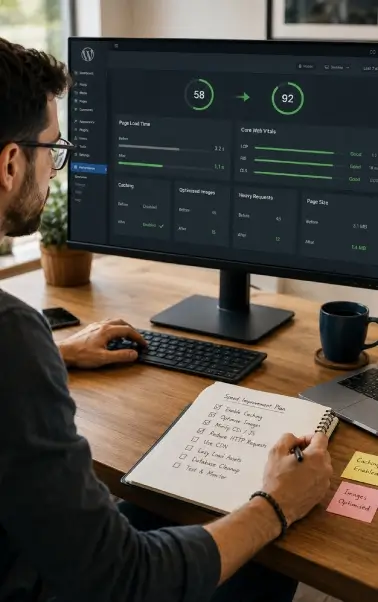
A 30-day WordPress speed improvement plan
Days 1–3: Measure and protect
- Create and verify backups and staging.
- Select representative URLs and business-critical flows.
- Record field and lab metrics, TTFB, page weight, requests, and errors.
- Export Site Health information and host resource evidence.
Days 4–7: Fix the origin
- Confirm supported PHP and database versions, as well as OPcache.
- Resolve resource-limit, error-log, and redirect problems.
- Configure and verify one full-page caching layer.
- Add a persistent object cache only when the site and host justify it.
Week 2: Reduce page weight
- Optimise the LCP image and other large images.
- Remove unused plugins, widgets, fonts, and third-party tools.
- Reduce render-blocking CSS and unnecessary JavaScript.
- Retest the same pages and functional flows.
Week 3: Fix application work
- Profile plugins, the theme, and database queries on staging.
- Resolve oversized autoloaded options with component owners.
- Repair cron and background-task failures.
- For WooCommerce, review cache exclusions, Scheduled Actions, and HPOS compatibility.
Week 4: Validate and prevent regression
- Test mobile, desktop, logged-out, logged-in, and target regions.
- Validate forms, search, consent, analytics, and checkout.
- Compare performance and conversion outcomes with the baseline.
- Set budgets, monitoring, owners, and a monthly review.
How to prove the fixes worked
Use three layers of evidence:
- Technical: Cached and uncached response time, Core Web Vitals, page weight, requests, errors, and resource use.
- Experience: Real-user performance by device, template, and region; support complaints; and failed interactions.
- Business: Conversion rate, checkout completion, lead-form completion, bounce and engagement, and revenue - while accounting for campaigns, seasonality, and traffic mix.
A lab score can improve while real users see no change, or while a delayed analytics script stops recording conversions. Validate observability before celebrating.
Get practical help improving server response, caching, Core Web Vitals, plugins, images, and database performance - without risking the features your business depends on.
Talk to a WordPress ExpertStart with a clear diagnosis and prioritised recommendations.
Frequently asked questions
Check what changed: a plugin/theme/core update, traffic spike, cache purge or failure, scheduled backup/scan/import, remote API outage, database growth, bot attack or hosting incident. Compare the timeline with server logs, deployment history, and resource graphs.
Your next step
Choose five URLs that represent revenue and user intent: the homepage, one key landing page, one content page, one heavy template, and one conversion page. For each URL, complete this loop:
- What do field users experience on mobile and desktop?
- Is the initial HTML slow, and is a repeat public request a verified cache hit?
- What is the LCP element, and is it correctly sized, discoverable, and prioritised?
- Which CSS, JavaScript, font, or third-party request creates the most avoidable work?
- Does Site Health or profiling show a plugin, query, autoload, or cron problem?
- Can the fix be tested on staging and rolled back?
- Did the same URL, function, and business outcome improve after deployment?
Complete that evidence loop before buying a bigger hosting plan or adding another optimisation plugin. A small number of measured, safe fixes usually beats a large bundle of unverified settings.

Search
Categories
Recent Posts
- 20 Dec, 2024 Building Brand Loyalty: How Custom Mobile Apps Drive Business Success
- 17 Jan, 2025 Designing An Attractive and Truly User-Friendly Website!
- 23 Dec, 2024 Driving Sales Through Online Channels: Transforming Your Business with a Webshop
- 09 Sep, 2024 Enhancing Customer Engagement: The Business Benefits of Mobile App Development
- 23 Dec, 2024 Expanding Market Reach: The Strategic Value of an E-commerce Webshop
- 10 Mar, 2026 Google Review Card: NFC vs QR – What Works Better?
- 01 May, 2026 Google Tools for Websites: A Complete, Detailed Guide for Website Owners, Developers, and Marketers
- 09 Sep, 2024 Harnessing Professional Web Design: Elevating Your Business’s Online Presence
- 13 Jun, 2026 Headless CMS vs Traditional CMS: Which Should Your Business Choose?
- 09 Sep, 2024 How an Online Delivery System Empowers Business Operations
- 07 Aug, 2026 How can a Dutch company get cited in ChatGPT, Gemini, Perplexity, and Copilot answers?
- 18 Sep, 2026 How can I choose a reliable web development company in the Netherlands?
- 07 Sep, 2026 How do I improve local visibility in ChatGPT and Microsoft Copilot, not just Google Maps?
- 20 Jan, 2025 How To Build A Custom Website For Your Business?
- 31 Aug, 2026 How to Choose a Digital Marketing Agency in the Netherlands: Services, Costs and a Practical Checklist
- 20 Jan, 2025 How To Create A Professional Website For Building Online Presence?
- 02 Aug, 2024 How to Plan a Perfect Digital Market
- 25 Jun, 2026 How to Work With a Web Design Agency to Grow Your Online Presence?
- 23 Dec, 2024 Investing in Website Development: Enhancing Customer Engagement and Conversion Rates
- 23 Dec, 2024 Meeting Customer Expectations: The Competitive Edge of an Online Delivery System
- 23 Dec, 2024 Optimizing Logistics: Enhancing Business Agility with an Online Delivery System
- 17 Jan, 2025 Optimizing Your Website with a Website Builder in Amsterdam
- 20 Jul, 2026 Progressive Web Apps (PWA) vs Native Apps
- 22 Apr, 2026 SEO vs GEO: The Future of Search in the Age of AI
- 03 Apr, 2026 The 10 Biggest Mistakes When Building a Website – and How to Avoid Them
- 27 Dec, 2025 The Cost of Getting a Website Made: What You Can Expect in the Netherlands?
- 09 Sep, 2024 The Essential Role of Online Marketing for Businesses
- 20 Dec, 2024 The Power of Digital Storytelling: Leveraging Online Marketing to Connect with Customers
- 23 Dec, 2024 The Strategic Advantage of a Well-Designed Website for Business Growth
- 23 Dec, 2024 Unlocking Market Potential: How Strategic Digital Marketing Propels Business Success
- 09 Sep, 2024 Unlocking Revenue Streams: Establishing an Online Webshop for Your Business
- 06 Jul, 2026 Web Performance Optimisation: Core Web Vitals
- 03 Aug, 2026 What is an E-commerce Website and How Does It Work?
- 27 Mar, 2026 What is sitemap.xml and Why Is It Important for SEO?
- 15 Apr, 2026 What Is the Difference Between Shopify and WordPress?
- 15 Jan, 2026 What Makes a Website Design User-Friendly?
- 30 Jul, 2026 What’s Allowed/Not Allowed With Google Reviews?
- 21 Mar, 2026 What’s Involved in Having a Website Created: A Step – by – Step Guide
- 27 Feb, 2026 What’s Involved in Having a Website Created: A Step-by-Step Guide
- 21 Jan, 2025 Why Consider WordPress for Website Builder?
- 21 Jan, 2025 Why Do Businesses Hire WordPress Website Builder Companies?
- 20 Jan, 2025 Why Does Your Business Need a Local Web Design Agency?
- 12 Aug, 2026 Why Is My WordPress Website Slow and How Can I Fix It?
- 11 Dec, 2025 Why You Should Have a Professional Website Built in 2026: What’s Changing?